
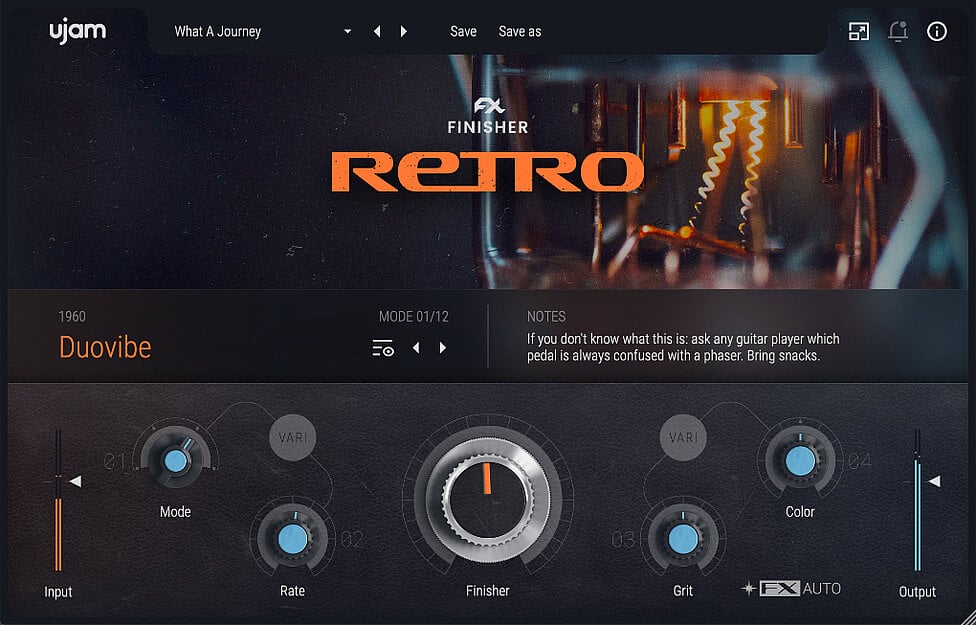
Welcome, and thank you for joining the Finisher RETRO freebie campaign! This guide provides everything you need to get this powerful creative effects plugin installed, activated, and running in your music projects.
We have designed the process to be as simple as possible. To ensure a smooth experience, please follow these three main phases in order:
- Claim Your License: The essential first step to link the free plugin to your UJAM account permanently.
- Install the Software: Download and install Finisher RETRO using the recommended UJAM App or a manual installer.
- Activate in Your DAW: Authorize the plugin inside your Digital Audio Workstation (DAW) to unlock its full potential.
If you run into any trouble, a comprehensive Troubleshooting Guide is included at the end of this article to help you solve common issues quickly.
Before You Begin: System Requirements & Compatibility
To save time and avoid potential issues, please check that your system meets the following requirements before you download and install the software. Finisher RETRO is a 64-bit only plugin.
| Requirement | Windows 🪟 | macOS 🍎 |
| Operating System | Windows 10 or later (64-bit only) | macOS 10.15 (Catalina) or later |
| Processor | N/A | Intel & Apple Silicon supported (Rosetta & native) |
| RAM | 4 GB minimum (8 GB recommended) | 4 GB minimum (8 GB recommended) |
| Disk Space | ~354 MB | ~354 MB |
| Plugin Formats | VST2, VST3, AAX (64-bit only) | VST2, VST3, AU2, AAX (64-bit only) |
| Required | Active internet connection (for license claim, download, and activation) | Active internet connection (for license claim, download, and activation) |
Please Note: While the plugin may work on older, unsupported operating systems (like Windows 7+ or macOS 10.11+), we cannot guarantee stability or provide technical support for systems that do not meet the official requirements listed above.
Step 1: Claim Your Free Finisher RETRO License
This is the most important step. Even though Finisher RETRO is free during this campaign, you must complete the checkout process to acquire a permanent license and link it to a UJAM account. The plugin cannot be activated without this license.
- Navigate to the official Finisher RETRO campaign page provided in your promotional email or on our website.
- Add the product to your cart and proceed to checkout. The price will be $0.00.
- During checkout, you will be prompted to either log in to your existing UJAM account or create a new one.
- Crucial: Use a single, primary email address for this process. All your UJAM products and licenses should be tied to one account to prevent activation conflicts later.
- Once the free "purchase" is complete, log in to your UJAM account's "Backstage" area.
- Click on "My Products" and verify that Finisher RETRO is now listed. If you see it there, you have successfully claimed your license and can proceed to the next step.
If you received a coupon code from a partner shop, you must redeem it in your UJAM account first. This will link the license to your account and allow you to proceed.
Step 2: Install Finisher RETRO
With your license secured, it's time to install the plugin. We offer two methods, with the UJAM App being the highly recommended choice for its simplicity and automated features.
Recommended Method: Using the UJAM App
The UJAM App is our all-in-one tool for downloading, installing, updating, and authorizing your plugins.
- Download the UJAM App from our website and run the installer.
- Once installed, launch the UJAM App and sign in using the exact same account credentials you used in Step 1.
- The app will scan your account and system. Finisher RETRO should appear in your list of products.
- Find Finisher RETRO in the list and click the "Install" button. The app will handle the entire download and installation process for you.
- Once installation is complete, the status will update. You are now ready for activation.
Alternative Method: Manual Download
If you prefer not to use the UJAM App you can install manually.
- Download the installer for Mac or Windows
- Open the installer (.pkg or .exe) and follow the prompts to complete installation.
Step 3: Activate Your Plugin
The final step is to authorize Finisher RETRO inside your DAW.
Automatic Activation (If you used the UJAM App)
This is the simplest method. If the UJAM App is running and you are signed in, authorization should happen automatically.
- Make sure the UJAM App is open and you are signed into your account.
- Click the sync button (at the top) or Refresh link (at the bottom) if it doesn't show "activated" under "Installed."
- Launch your DAW. You may need to have your DAW rescan for new plugins.
- Load Finisher RETRO onto an audio track.
- The plugin should load directly without any pop-ups, fully activated and ready to use. The "Trial" message will be gone.
Manual Activation (Inside the Plugin GUI)
Use this method if you installed manually or if automatic activation did not work.
- Launch your DAW and load Finisher RETRO onto a track.
- An activation window will appear inside the plugin's interface.
- Enter the exact same email and password used in Step 1 to claim your license. For best results, enter your email address in all lowercase letters.
- Ensure you have an active internet connection and click "Activate License".
- The plugin will authorize, and the activation window will disappear. You may need to close and reopen the plugin interface to see the change.
IMPORTANT: You Should Use the Same UJAM Account for Everything
The most common reason for activation failure is a mismatch between accounts. The email and password used to activate the plugin must match the account where you claimed your free license in Step 1. Using different accounts will prevent the system from finding your license.
Troubleshooting Guide: Getting Unstuck
Encountered a problem? This section covers the most common issues and their solutions. Please try these steps before contacting support.
Problem: The UJAM App won't connect, download, or install.
If the UJAM App is stuck or showing errors, follow this checklist:
- Check Your Connection: Ensure you have a stable internet connection. Temporarily disable any VPNs or proxies, as they can interfere with the connection to our servers.
- Run as Administrator (Windows): Right-click the UJAM App icon and select "Run as administrator." This can resolve permissions-related issues.
- Disable Security Software: Temporarily disable your antivirus or firewall software. These programs can sometimes mistakenly block the app from downloading or writing files. Remember to re-enable them afterward.
- Refresh the App: At the very bottom of the UJAM App window as well as the top right of the UJAM App Window, there is a "refresh" link and “Sync” button respectively. Click it to force the app to re-sync with your account.
- Sign Out and Back In: Try signing out of your account within the UJAM App and then signing back in.
- Reinstall the App: If all else fails, completely uninstall the UJAM App, restart your computer, and then install the latest version from our website.
- Final Resort: If the app still doesn't work, use the "Alternative Method: Manual Download" described in Step 2.
Problem: Finisher RETRO is stuck in "Trial Mode" or says "Activation Failed".
This almost always indicates a license or connection issue.
- Verify Your License: First, double-check that you completed Step 1 correctly. Log in to your UJAM account on our website and confirm that Finisher RETRO is listed under "Your Products." If it's not there, you must claim the license first.
- Check Your Credentials: Ensure you are using the correct email (all lowercase) and password. If you are unsure, try resetting your password via our website. Avoid using special characters in your password if you experience issues.
- Sync the UJAM App: Click the sync icon (upper right) or Refresh link (bottom) to sync the UJAM App to your account.
- Check Your Internet: A stable internet connection is required for the initial activation. The "Oops! An internet connection is required..." error can be caused by a firewall or antivirus blocking the plugin itself. Temporarily disable that and try activating again.
- Run DAW as Administrator (Windows): Close your DAW, then right-click its icon and select "Run as administrator." Load the plugin and try activating again.
- Check Folder Permissions (macOS): On macOS, activation might fail if the system is blocking the plugin from writing its license file.
-
- In Finder, click "Go" in the menu bar, hold down the Option key, and click "Library".
- Navigate to Application Support/UJAM/.
- Right-click the "UJAM" folder and select "Get Info".
- At the bottom, under "Sharing & Permissions," ensure your username has "Read & Write" privileges. If not, click the lock icon, enter your password, and change the permissions.
Problem: My DAW crashes when loading Finisher RETRO.
A crash often points to a corrupted or incomplete installation. The most effective solution is a "clean reinstall."
- Close your DAW.
- Run the official uninstaller for Finisher RETRO. You can find instructions for both Windows and macOS on our support site.
- Manually check your plugin folders (e.g., C:\Program Files\VSTPlugins, /Library/Audio/Plug-Ins/) and delete any leftover Finisher RETRO files (.dll, .vst3, .component, .aaxplugin).
- Restart your computer. This is a vital step to clear any cached files.
- Reinstall Finisher RETRO using either the UJAM App or the manual installer from your account.
If you have installed the plugin's content (.blob file) to an external drive, this can sometimes cause instability, especially if the drive is not formatted correctly or disconnects. As a test, try reinstalling everything to your main system drive to see if the issue is resolved.
Still Need Help? Contacting Support
If you have worked through this guide and are still unable to resolve your issue, our support team is here to help. To get the fastest possible resolution, please submit a request through our helpdesk and include the following information:
- The email address associated with your UJAM account.
- Your Operating System and version (e.g., Windows 11, macOS Sonoma 14.1).
- Your DAW and version (e.g., Ableton Live 11.3, Logic Pro 10.8).
- A detailed description of the problem, including the exact error message if there is one.
- A summary of the troubleshooting steps you have already tried from this article.
- A screenshot of the error message or the plugin window showing the issue.
Providing these details upfront will allow our team to diagnose your problem more efficiently and get you back to making music.
Comments
0 comments
Article is closed for comments.